macOS 15+Menu bar app
Capture, mark up, record, share.
Press a shortcut, pick an area, window or screen, and the capture lands in a floating Quick Access thumbnail. Copy it, save it, annotate it, pin it, read its text or upload it from there. Screen recordings work the same way.
- Swift
- AppKit
- ScreenCaptureKit
- No Electron
Free, MIT License. Not notarized yet: allow the first launch in System Settings › Privacy & Security › Open Anyway.
Annotate
A full editor, right after the capture.
Gradient backgrounds, arrows, pixelate, spotlight and counters, with undo, redo, zoom and “Drag Me” to drop the result into any app.
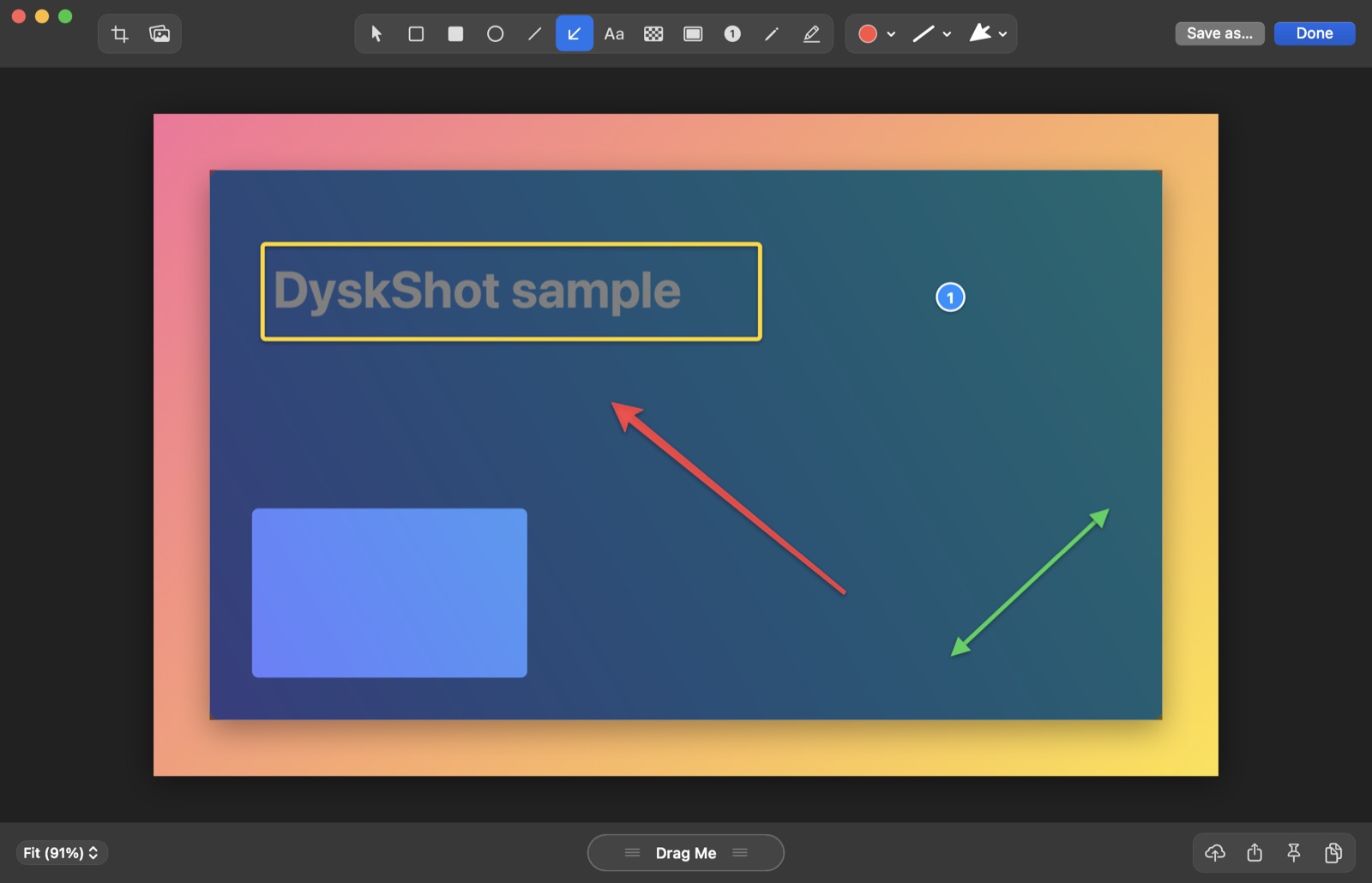
- Crop and backgrounds
- Boxes, ellipses, lines
- Arrows, four styles
- Text
- Pixelate
- Spotlight
- Counters
- Pencil and highlighter
Screen recording
Record video or GIF, with sound and camera.
Pick an area, size it in the HUD, then press ↩ for video or ⌥↩ for a GIF.
- A resizable area with a W × H HUD
- Microphone and system audio
- A camera bubble
- Click highlights and keystrokes
- A countdown and a dimmed background
- MP4 (H.264 or HEVC) or GIF
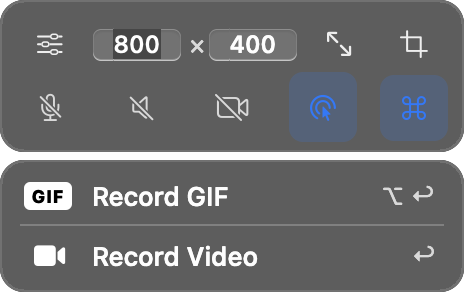
 REC 00:12
Features
Small, native and complete.
- 01Capture anything
Area, previous area, window (with wallpaper, padding and shadow, or transparent), fullscreen and a self-timer. The screen can freeze while you select, with a crosshair and magnifier.
- 02Quick Access
Every capture shows up as a floating thumbnail: copy, save, annotate, pin, OCR, upload, or drag it straight into another app.
- 03Read text (OCR)
Copy the text from any area, with or without line breaks, in every language Vision supports.
- 04Pin to screen
Floating, always-on-top screenshots. Scroll to resize them.
- 05Video editor
Trim with a filmstrip, set quality, size and format, then choose the audio: keep, mono, mute or 0–200% volume.
- 06Compress video
HEVC at constant quality, with the same resolution, frame timing and colour. The original stays if the result wouldn't be smaller.
- 07GIF
Frame rate 5–30, quality, merging of identical frames and a maximum width.
- 08History and desktop icons
Reopen recent screenshots, choose how long to keep them, and hide desktop icons while you capture.
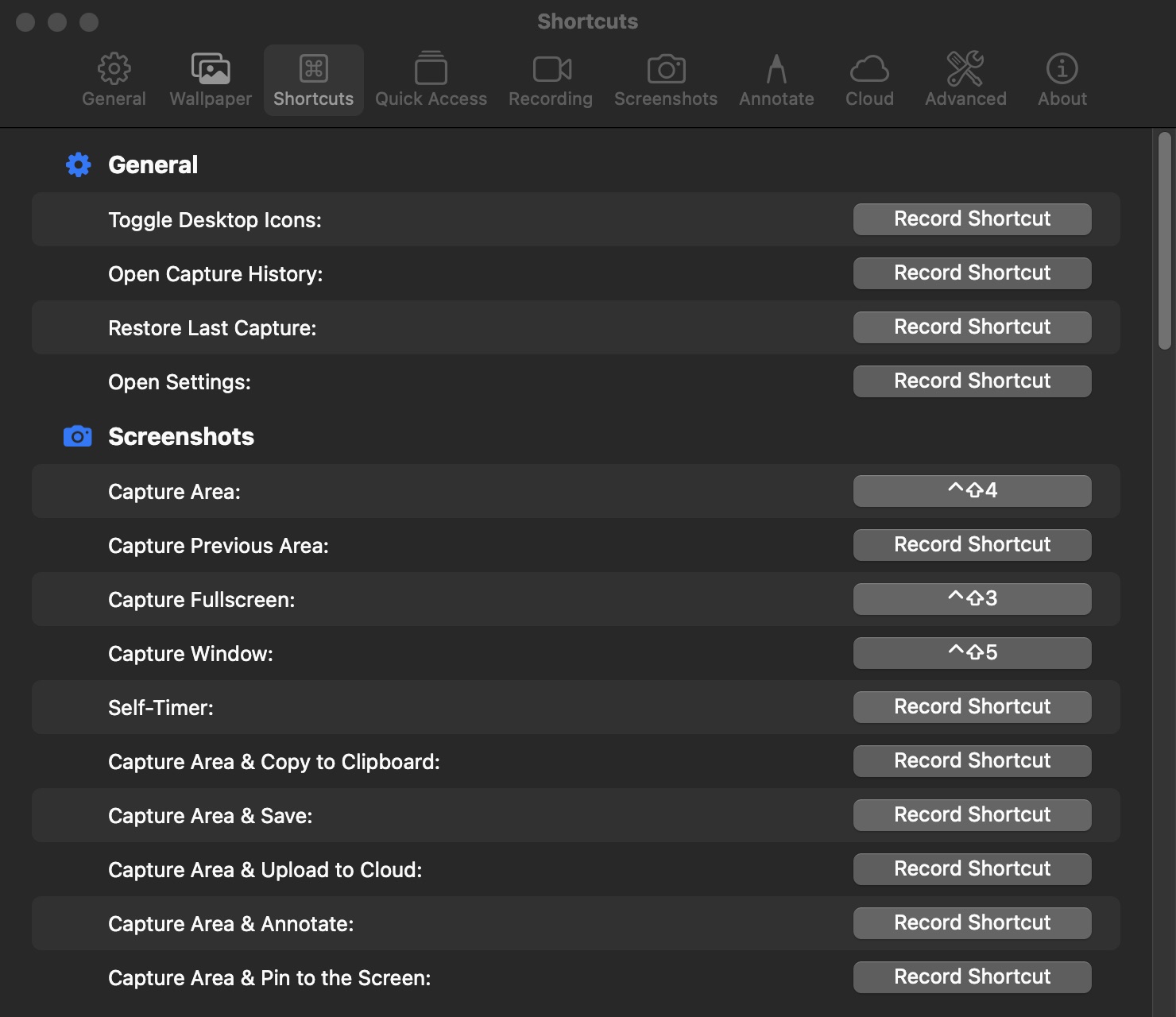
Shortcuts
Every action can have a global shortcut.
While selecting, Space switches to window mode, Shift keeps it square, and Esc cancels. Set the rest in Settings › Shortcuts.
- Capture area⌃⇧4
- Capture window⌃⇧5
- Fullscreen⌃⇧3
- Capture text (OCR)⌃⇧2
- Record screen / stop⌃⇧6
Privacy
Stays on your Mac.
- Everything stays on your Mac. There is no DyskLab server.
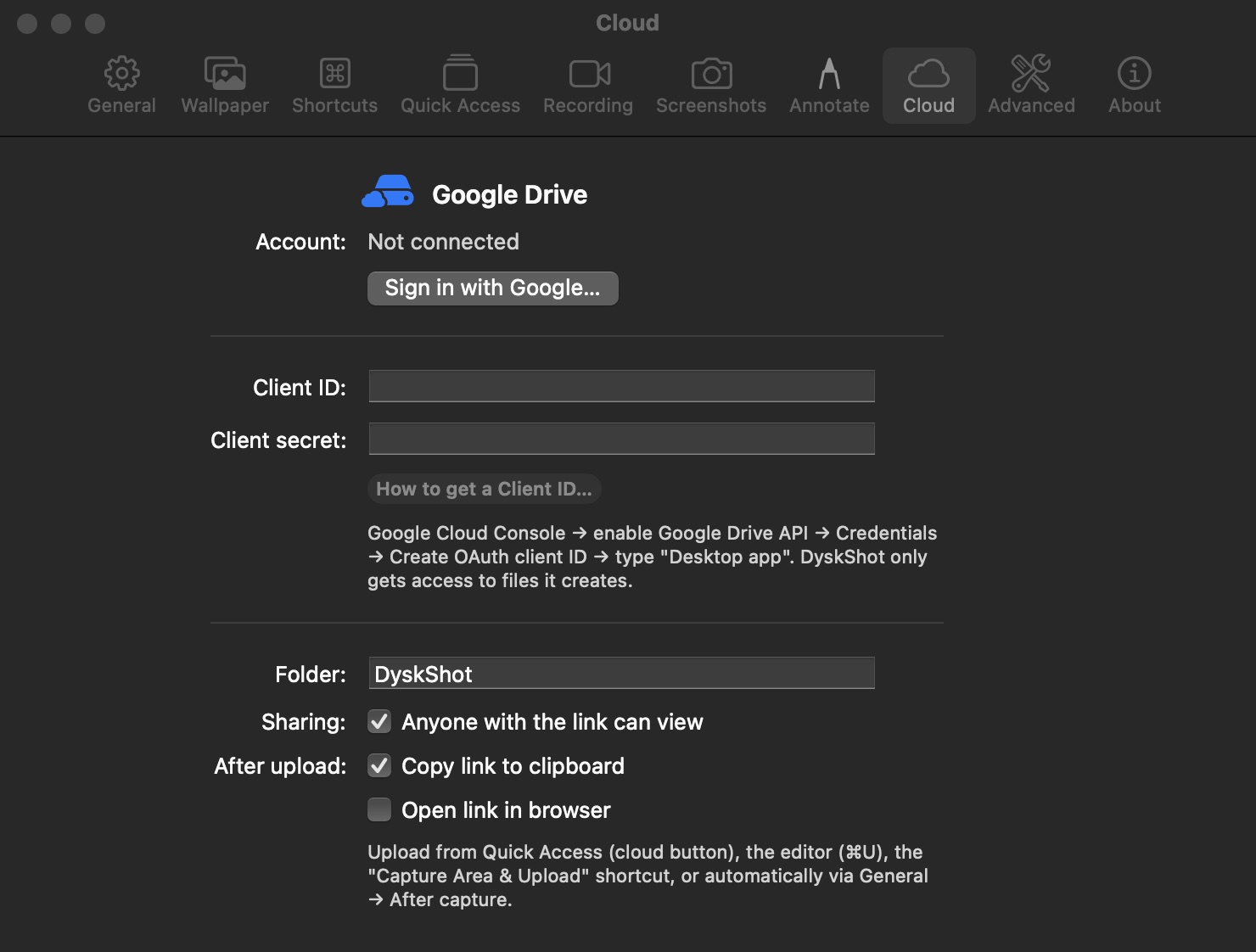
- Google Drive upload is opt-in, uses your own OAuth client, and can only see files DyskShot creates (the drive.file scope).
- Sign-in uses a loopback redirect with PKCE; the refresh token is kept in the Keychain.
Automation
Call it from scripts or Shortcuts.
Turn on Settings › Advanced › API, then use the dyskshot:// URL scheme.
❯ open dyskshot://capture-area
❯ open dyskshot://capture-window
❯ open dyskshot://capture-text
❯ open dyskshot://record-gif
❯
Also: capture-previous, capture-fullscreen, self-timer, record-screen, history, toggle-desktop-icons, settings.